Guides
How to Use Voice Input in Cursor to Write Better Coding Prompts
Learn how to use voice input in Cursor to create clearer coding prompts with better context, constraints, and acceptance criteria.
Typeoff Team August 4, 20267 min read
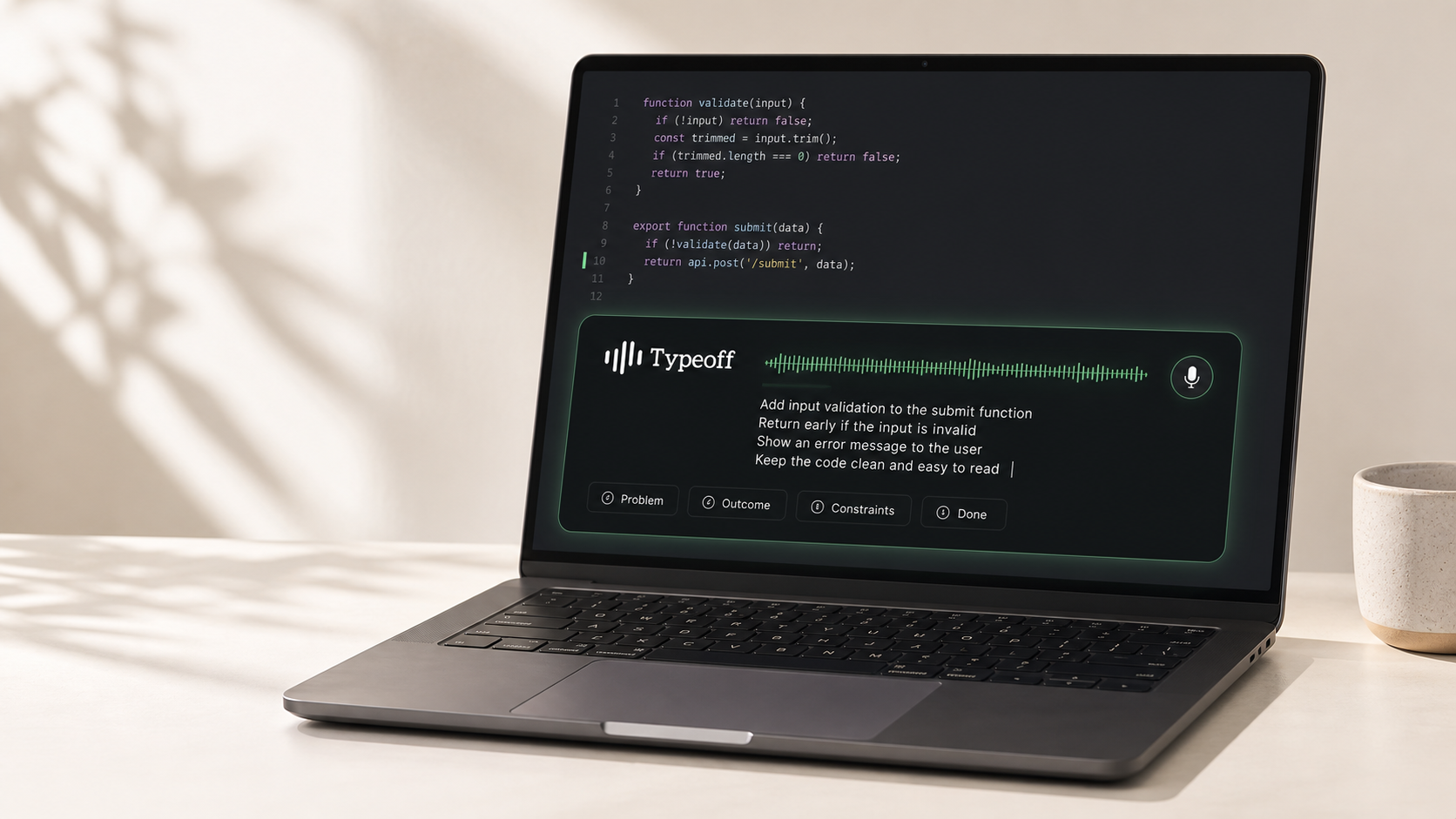
For complex code changes, the shortest prompt is often not the fastest path to completion.
You may know exactly what needs to be done, yet you type a single line in Cursor like “update settings form.” That sentence is typed in a few seconds, but it leaves several critical decisions unexplained: What specific behavior should change? Which parts must stay the same? What edge cases need to be considered? When is the task truly finished?
For tiny tweaks this prompt might be enough. However, when a change touches multiple states or constraints, missing context often resurfaces as unnecessary follow‑up questions, extra rework, or “the code is technically correct but solves the wrong problem.”
Voice input helps here for a simple reason: it lets you draft a more complete initial description with less effort. You can speak the task naturally, then slow down to verify the details that must be precise.
This isn’t about dictating code or making every prompt longer. It’s a way to give Cursor the information that actually influences the implementation without turning “writing a prompt” into a separate project.
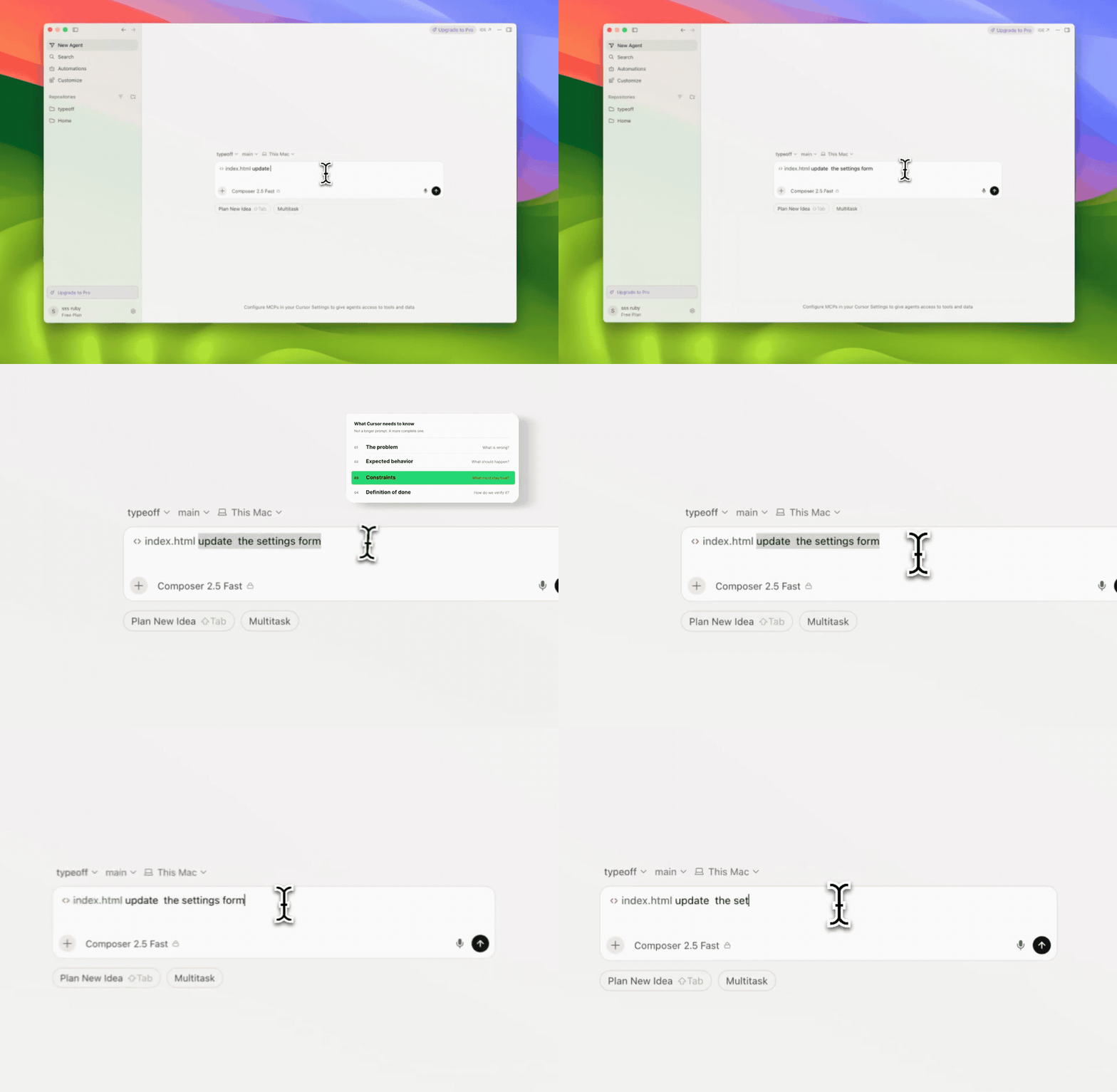
Where Voice Input Fits in the Cursor Workflow
Cursor can scan the repository, edit files, run commands, and iterate on a task continuously. The Agent still needs a clear, useful specification. Cursor’s official guide on collaborating with a programming Agent recommends planning first and giving the Agent explicit goals for complex tasks.
Some context belongs in project rules, documentation, or the code itself, but the current task still requires its own key decisions: the desired behavior, the boundaries of the change, and the evidence that the result is acceptable.
Voice is especially suited for the natural‑language parts of that work:
- Explain the current behavior
- Describe the expected user experience
- State constraints and what won’t be done
- List edge cases
- Define what needs to be tested
The keyboard remains better for precise syntax, paths, identifiers, small edits, and anything that shouldn’t be spoken aloud. An effective workflow combines both voice and keyboard.
A Four‑Part Structure for Dictating Cursor Prompts
Before you start speaking, break the task into four sections:
- Problem: What is happening now? Why is it a problem?
- Desired Outcome: What should the result look like?
- Constraints: What must stay unchanged?
- Acceptance Criteria: Which observable behaviors or tests prove the task is complete?
This isn’t a rigid template; it’s a quick reminder to keep the most easily omitted decisions out of your head.
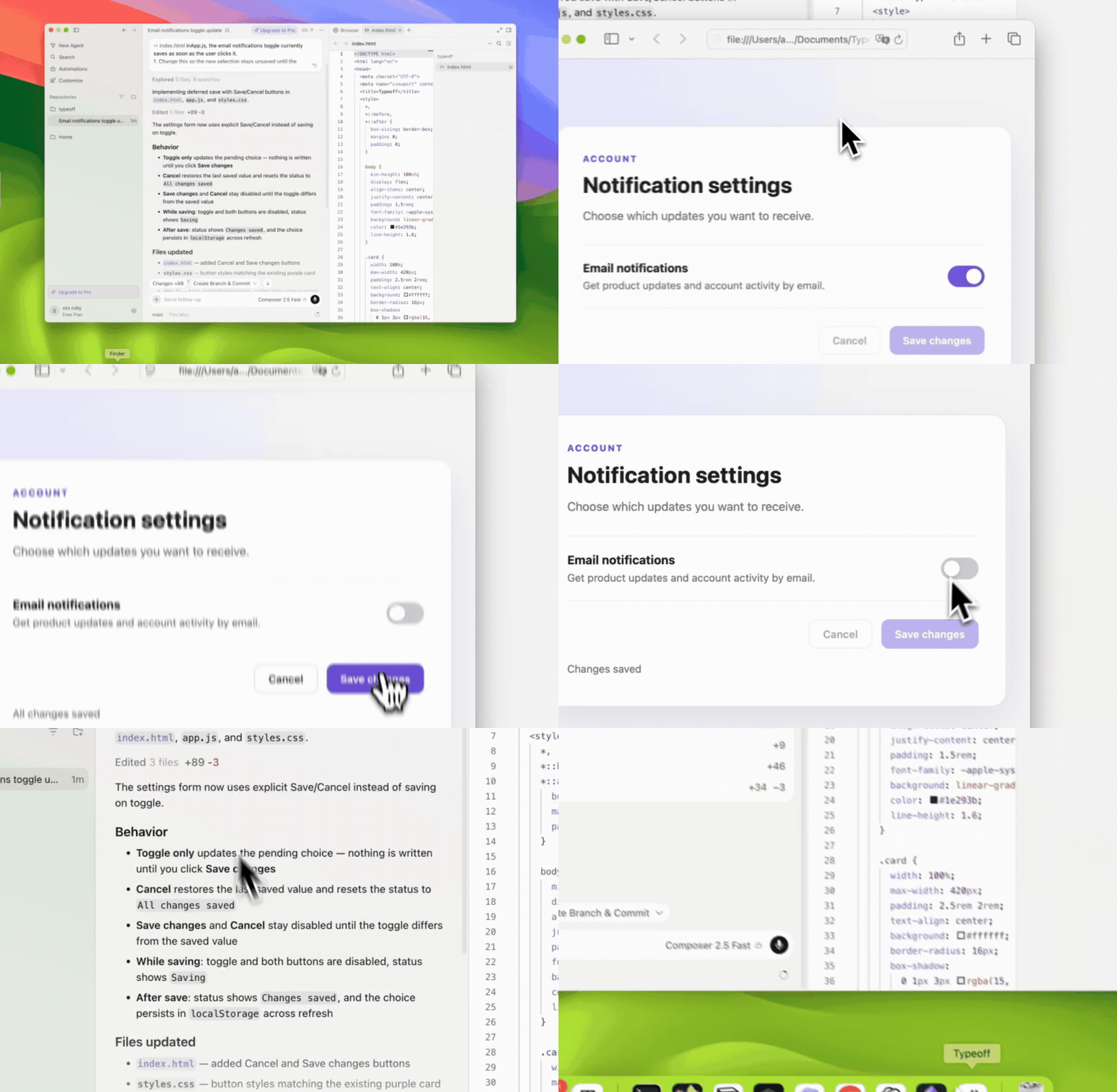
Imagine a notification toggle on a settings page that saves immediately on click. The real change isn’t just “add Save and Cancel buttons.” The Agent also needs to know how to handle the unsaved state, when controls should be disabled, what happens during saving, and what should persist after a page refresh.
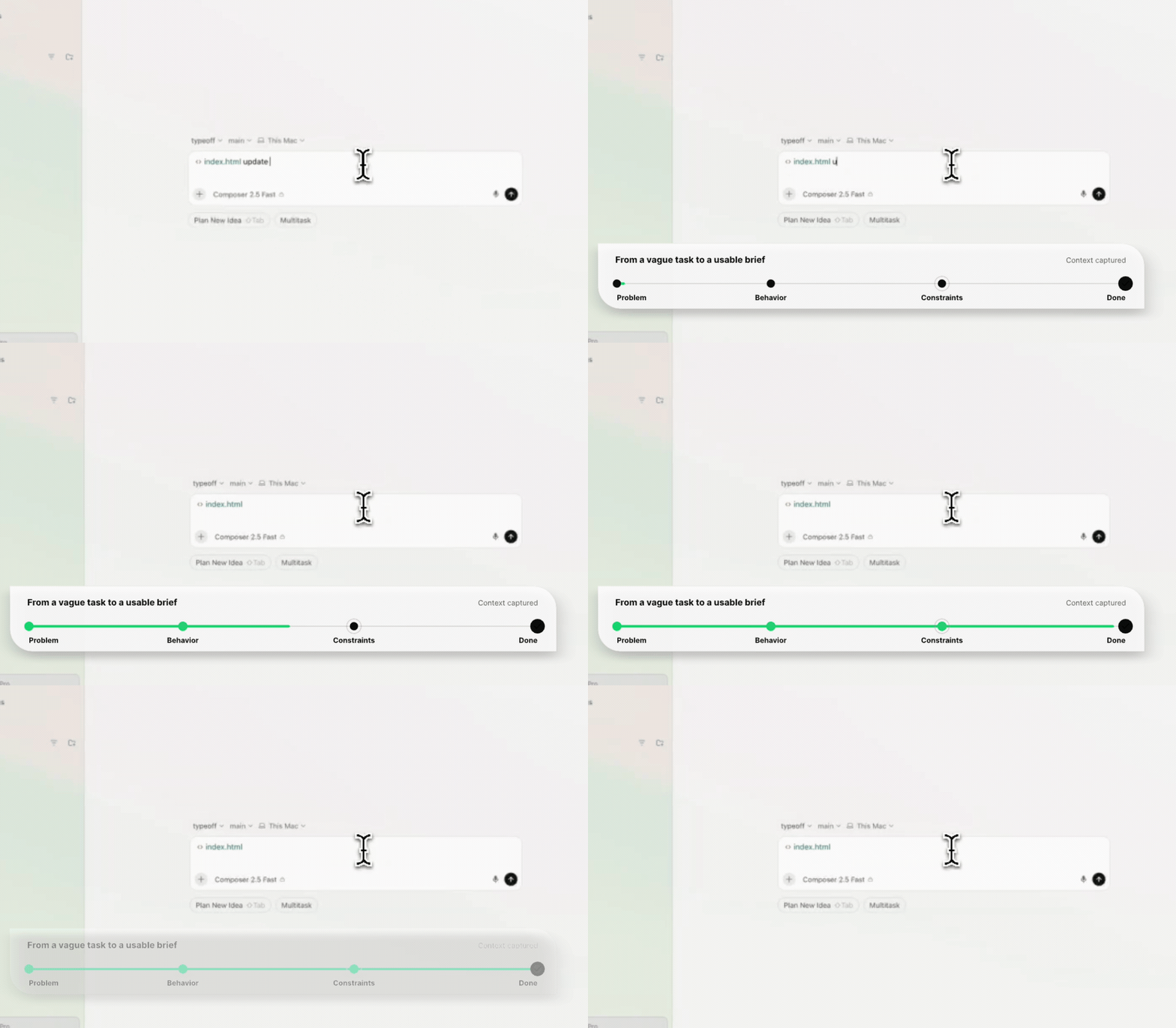
Here’s a more complete, ready‑to‑execute prompt for the same task:
In
app.js, the email notification toggle currently saves instantly when the user clicks it. Modify this behavior so the new option remains unsaved until the user clicks Save changes. Add a Cancel button that restores the last saved settings. When nothing has changed, the Save button should stay disabled. During saving, disable the toggle and both buttons and show a Saving state. After saving, display Changes saved. Update HTML and styles as needed, but keep the existingupdatePreferencesfunction and the current visual style. Do not add new libraries or modify other parts of the page. The task is complete only when Save persists the new setting, Cancel restores the previous one, and the chosen option persists after a page refresh.
The usefulness of this prompt doesn’t come from its length. It clearly states the current behavior, describes every important state, protects decisions that must not change, and ends with verifiable results. The value lies in specificity, not word count.
How to Dictate a Detailed Prompt in Cursor
1. Check the Task First
Open the relevant file or reproduce the current behavior. Have any identifiers you might need on hand—file names, function names, component names, error messages, test commands.
Spending a few minutes here prevents your spoken description from turning into a series of guesses. If you’re unsure about a technical detail, describe what you actually observe rather than inventing an implementation.
2. Place the Cursor in the Agent Input Box
Put the text cursor where you want the prompt to appear. Use your configured shortcut to launch Typeoff and speak the full thought process.
You don’t need to read it like a script. Pause briefly between the problem, outcome, constraints, and acceptance sections. Those natural breaks make the generated draft easier to review.

Typeoff is an AI voice‑input tool that inserts the processed text at the cursor location. In this workflow it turns your spoken description into a readable draft inside Cursor. It does not decide whether the requested change is correct, nor does it replace the developer’s review of the code.
3. Review Anything Voice Could Misinterpret
After the text appears, don’t send it immediately. Run through a short checklist:
- Identifiers: Are file names, function names, component names, and commands exactly correct?
- Negations: Are “don’t”, “never”, or “must not change” captured accurately?
- Numbers & States: Are limits, timeouts, status strings, and expected state transitions precise?
- Scope: Is it clear what Cursor may modify and what must be left untouched?
- Acceptance Criteria: Can each condition be observed or tested?
Fix minor errors with the keyboard. Voice captures the overall outline; the keyboard ensures technical precision.
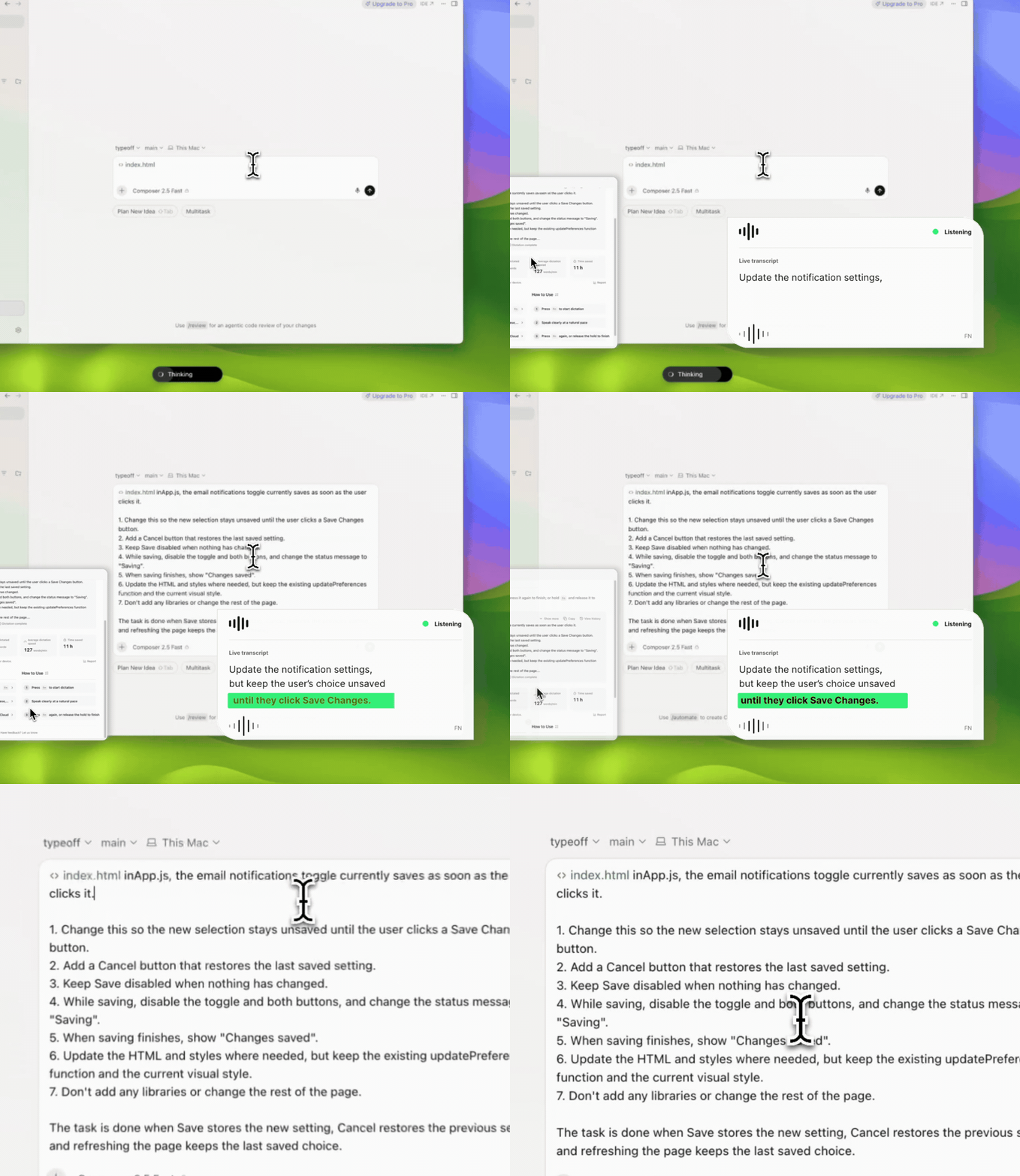
4. Let Cursor Plan Before Implementing
For multi‑step changes, ask Cursor to scan the relevant code and propose a plan before you start editing. This creates a valuable checkpoint: you can catch wrong assumptions before they spread across files.
After implementation, review the diff and run the validations. Test all the states described in the prompt, not just the happy path. In the settings‑page example, that means verifying Save, Cancel, the disabled‑when‑unchanged state, the saving state, and persistence after refresh.
A more complete prompt doesn’t guarantee flawless code, but it gives the Agent a clearer target and gives you a stronger basis for later review.
When Voice Input Is Appropriate—and When It Isn’t
Voice shines when a task involves multiple inter‑related decisions, for example:
- Bug reports that include reproduction steps and expected behavior
- Refactors that must preserve a specific API or interaction pattern
- UI changes that affect loading, empty, error, and success states simultaneously
- Pull‑request descriptions that explain why a change was made and how to test it
- Code‑review comments that discuss technical trade‑offs
If the work is a one‑line edit, a precise code snippet, or a terminal command, voice usually adds little value. It’s also unsuitable in shared spaces or when the task involves passwords, customer data, access tokens, unpublished information, or anything that shouldn’t be spoken aloud.
The goal isn’t to replace typing with speech, but to choose the least‑friction input method for each part of the job.
A Reusable Voice Prompt Template
Next time you face a non‑trivial Cursor task, you can use this lightweight structure:
Problem: In
[file or feature area], when[trigger]occurs,[current behavior]happens.
Desired Outcome: Change it to[expected behavior].
Constraints: Keep[existing behavior/API/style]. Do not[explicitly excluded work].
Acceptance Criteria: The task is complete when[observable check or test]passes.
Don’t mechanically fill every field. Add only the information that influences implementation or review. If some background repeats across tasks, store it in project documentation or Cursor Rules instead of re‑dictating each time.
The Point Isn’t a Longer Prompt
A good Cursor prompt doesn’t have to be exhaustive, but it must make the important decisions visible.
For complex changes, voice reduces the effort needed to explain the problem fully. The real rigor happens after you’ve spoken: verify technical terms, enforce the change boundaries, and check the code against your predefined acceptance criteria.
The next time you have a detailed task you’d rather not type, try stating the four things first: problem, desired outcome, constraints, and acceptance criteria. Dictate a draft, review it, then send.