Guides
How to Use Voice Input to Write in Another Language
Learn how Typeoff’s multilingual voice input lets you speak in one language and write in another across any app on your device.
Typeoff Team August 7, 20267 min read

Writing in a different language usually adds an extra step to your workflow.
You first draft the message in the language you’re comfortable with, drop it into a translator, compare the result, copy the translation, paste it back into Gmail or Slack, and then tweak any changes. Each step is simple, but together a two‑minute message can turn into a mini‑project.
Multilingual voice input offers a simpler path: speak the exact message you want, choose the target language, and let the translated text appear right where you need it.
The key is to understand what this workflow can and cannot do. It changes the language of the message, not the content you need to decide.
Translating Your Words Is Not the Same as Writing for You
Imagine you need to update a colleague named Yuki on the progress of a Japanese landing page. A vague command might be:
Write an email to Yuki about the landing page and ask for feedback.
That’s a writing request, not the email itself. It leaves the greeting, scope, deadline, tone, and even which facts are important for the tool to guess.
A better cross‑language voice workflow starts with the actual message you want to send:
Hi Yuki, I’d like to update you on the Japanese landing page. The main layout is finished and we’ve added the latest product screenshots. Before publishing, could you review the headline, pricing section, and the short FAQ at the bottom?
Then add any useful details: why the review is needed, when you need the feedback, next steps, and what to do if the timing doesn’t work. The content still comes from you. Voice input just speeds up expression, while the cross‑language output handles the language switch.
This distinction matters because no translation can recreate information you never provided. If the deadline, constraints, or specific requests are critical, you must say them.
A Practical Multilingual Voice‑Input Method
The process isn’t complicated, but a few choices make the output easier to verify.
1. Choose the Output Language First
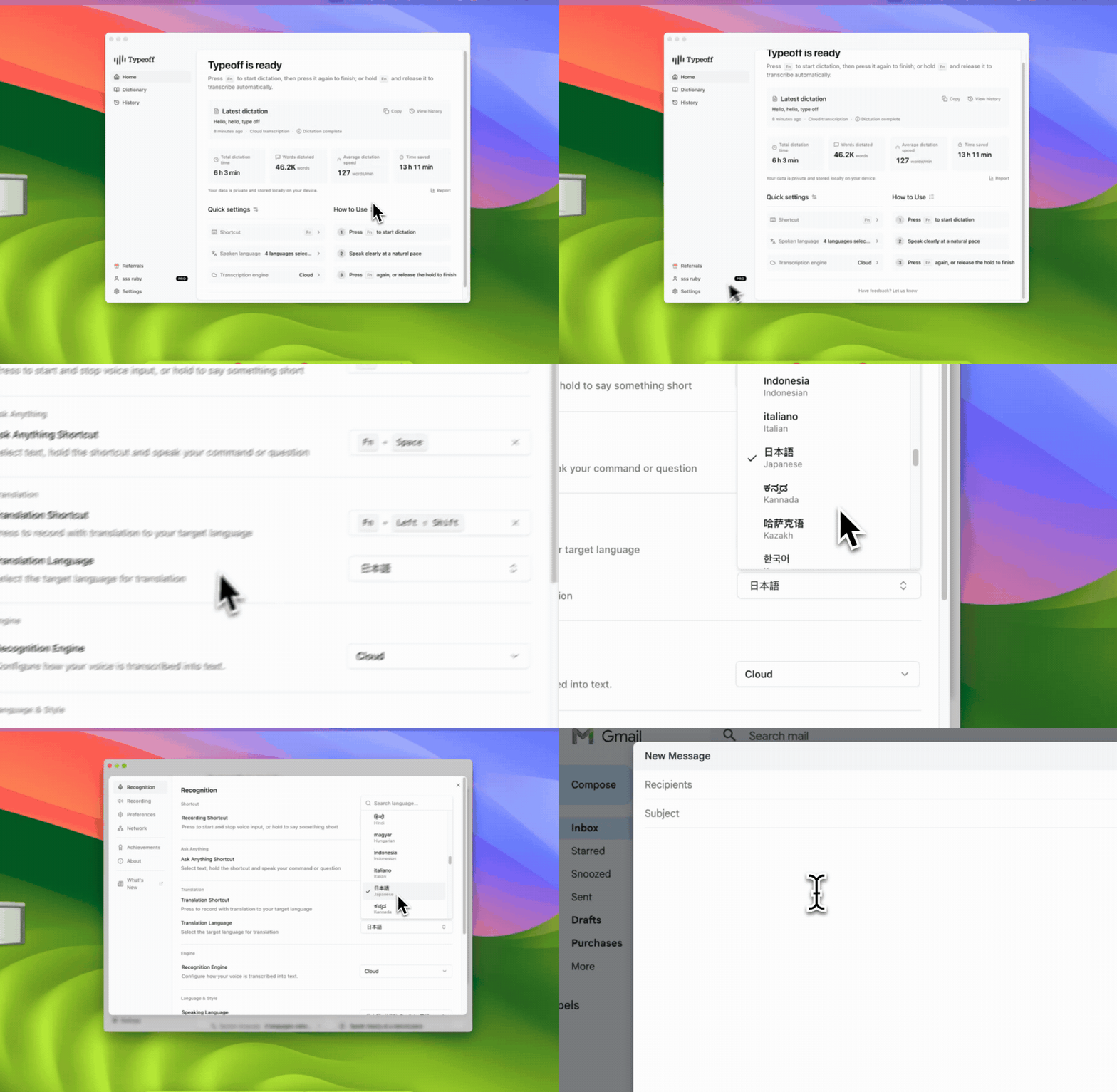
Select the language the recipient will read, which may differ from the language you’ll speak. This obvious step prevents the common mistake of speaking a long paragraph only to discover you chose the wrong output language.
For longer messages, set the language once, place the cursor where the text should go, and then start dictating.
2. Speak the Message, Not the Instruction
You can briefly state the format, e.g., “I need to send Yuki a work email,” but then immediately dictate the email itself. Greeting, progress, request, deadline, alternatives, and sign‑off should all be what you want the recipient to see.
Treat voice as an input method, not a replacement for the author. The clearer the source message, the less the translation engine has to guess.
3. Express Complete, Clear Ideas
You don’t have to read a script word‑for‑word. Short, complete ideas translate more reliably than a stream of constantly edited phrasing.
For example:
- The page layout is finished.
- The latest product screenshots have been added.
- Please review the headline, pricing section, and FAQ.
- If we receive feedback by Wednesday 3 PM, we can release on Friday as planned.
- If that’s too tight, suggest an alternative time.
This structure gives each sentence a clear task, making it easy to spot omissions.
4. Review the Translation Before Sending
Cross‑language voice input reduces steps, not responsibility. Before sending or publishing, double‑check the parts with the highest risk:
- Names & titles: Are personal, company, and product names correct?
- Numbers & dates: Have times, prices, quantities, and deadlines stayed unchanged?
- Product terminology: Did any feature names or technical terms turn into generic wording?
- Tone & formality: Does the phrasing match the relationship and channel?
- Requests & commitments: Is who‑does‑what‑when clear?
- Completeness: Are all important conditions and explanations retained?
If the message is high‑risk, public‑facing, contractual, or culturally sensitive, have a native speaker or professional translator review it. Speed is valuable, but not at the expense of blind confidence.
The Same Workflow for Three Different Writing Tasks
Long emails are a good stress test because they involve structure, detail, and tone. In everyday work, however, multilingual dictation shines on the short messages that consume most of our time.
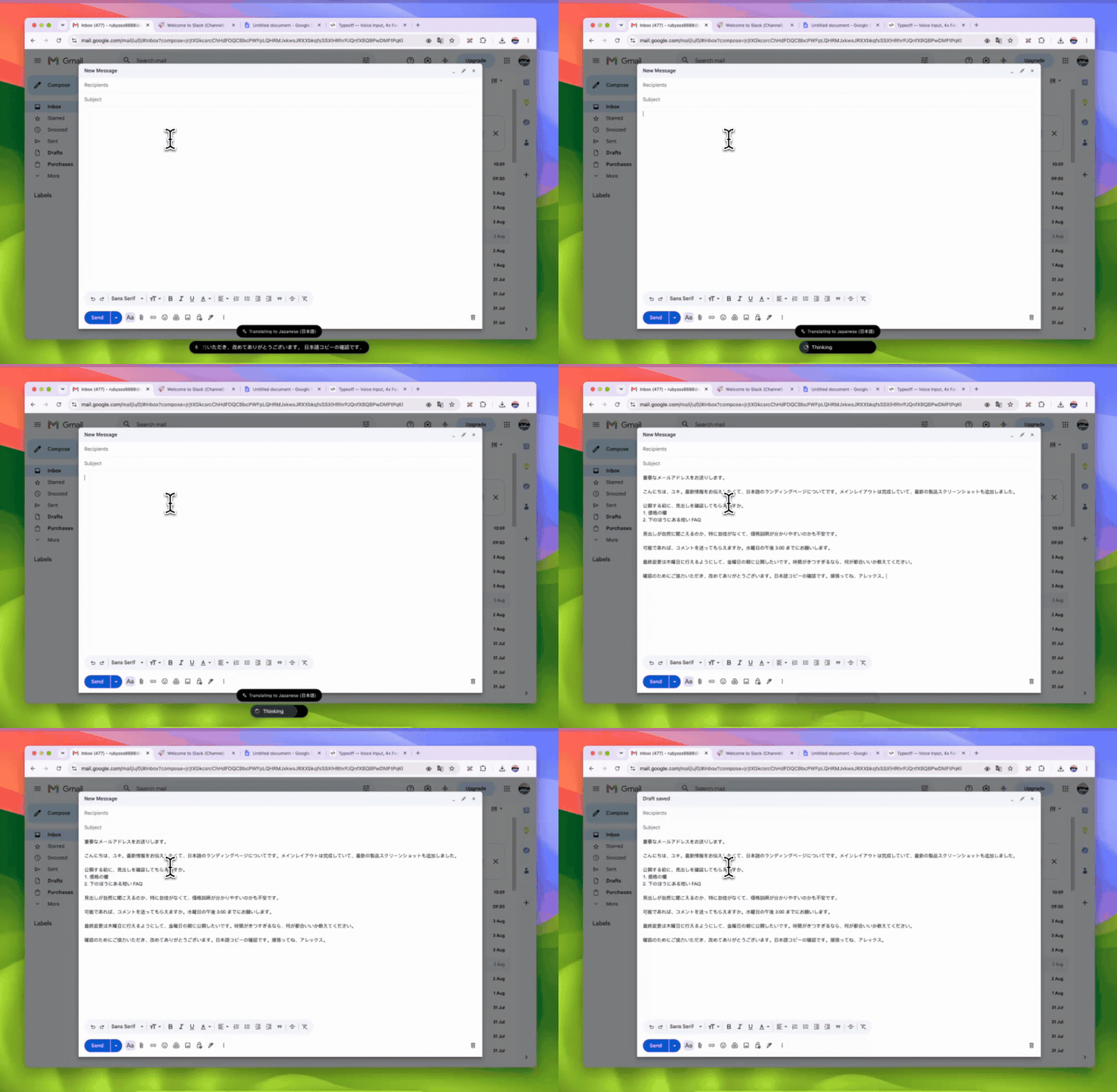
Japanese Email in Gmail
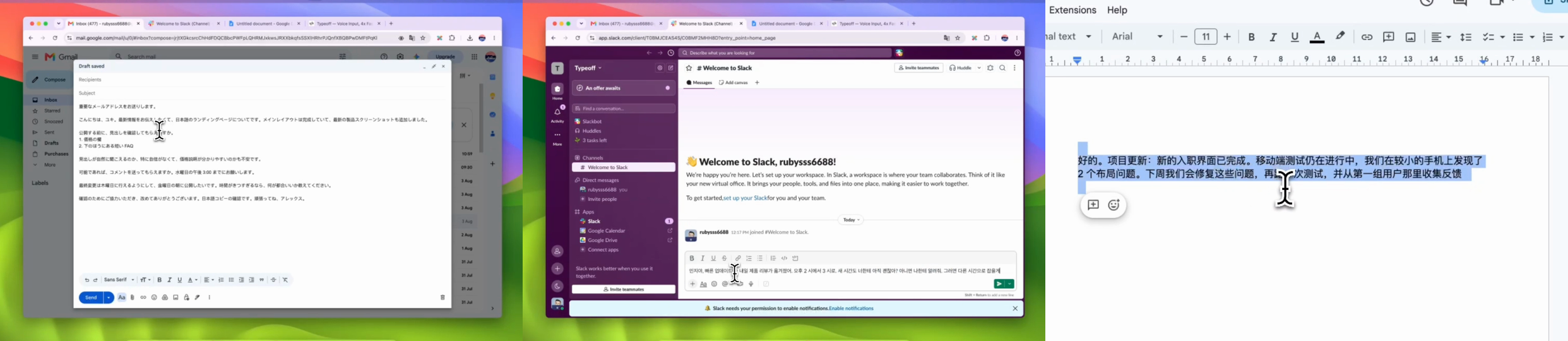
In the first example, the user speaks English to describe the Japanese landing‑page update and asks a Japanese‑speaking colleague to check three specific areas. The source message includes the Wednesday feedback deadline, Thursday revisions, and Friday release, plus a fallback option if the timing doesn’t work.
These details make the draft actionable. Without them, the recipient would only know feedback is needed, but not what to look at or when.
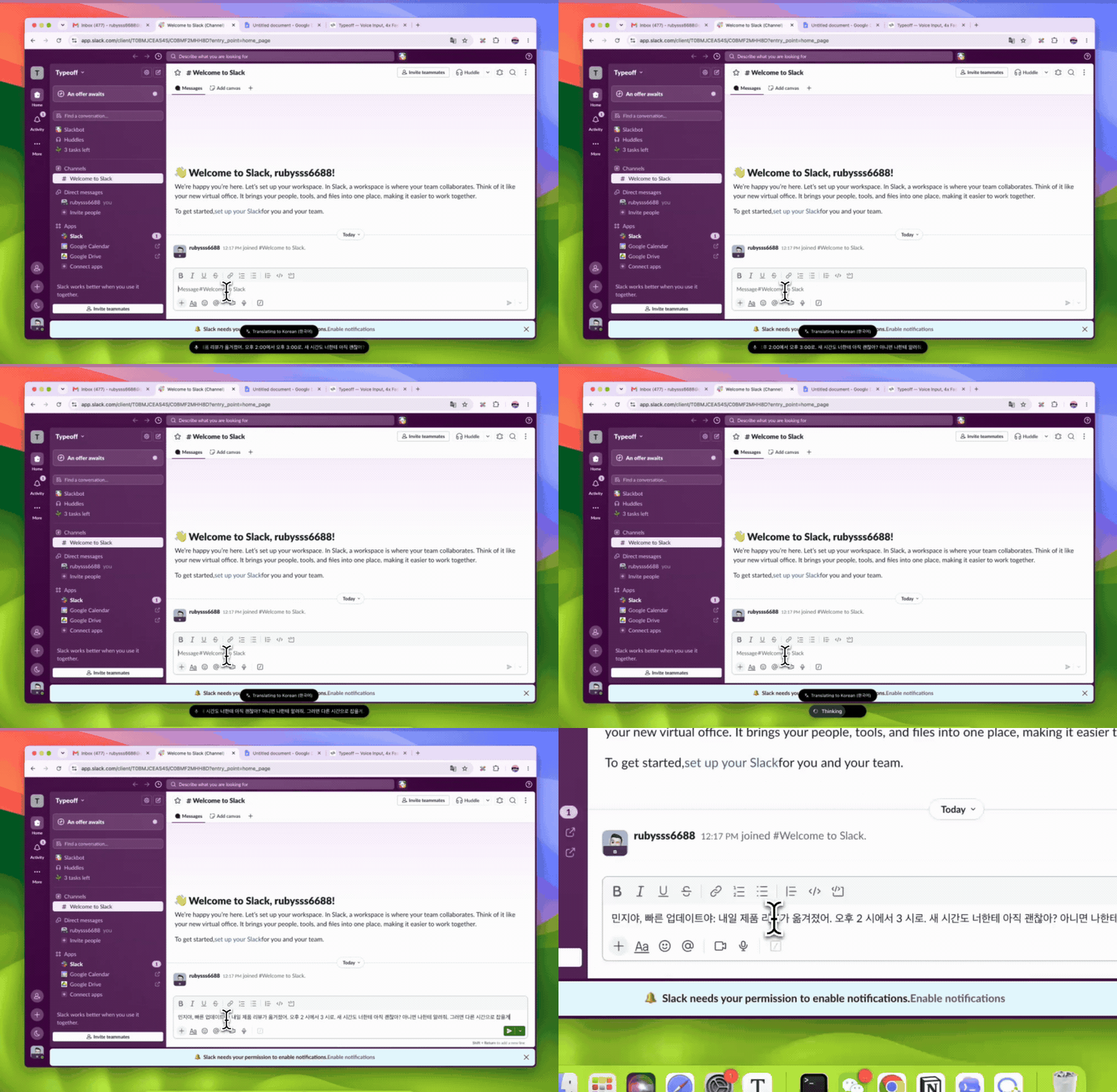
Korean Time‑Change Message in Slack
Team messages need brevity and completeness. The goal is a quick read that still leaves no room for follow‑up clarification:
Minji, hi – quick update: tomorrow’s product review moved from 2 PM to 3 PM. Does the new time still work for you? If not, let me know and we’ll find another slot.
The translated message can stay directly in the Slack thread, eliminating the copy‑paste step. The recipient sees the time change, a direct question, and an alternative plan.
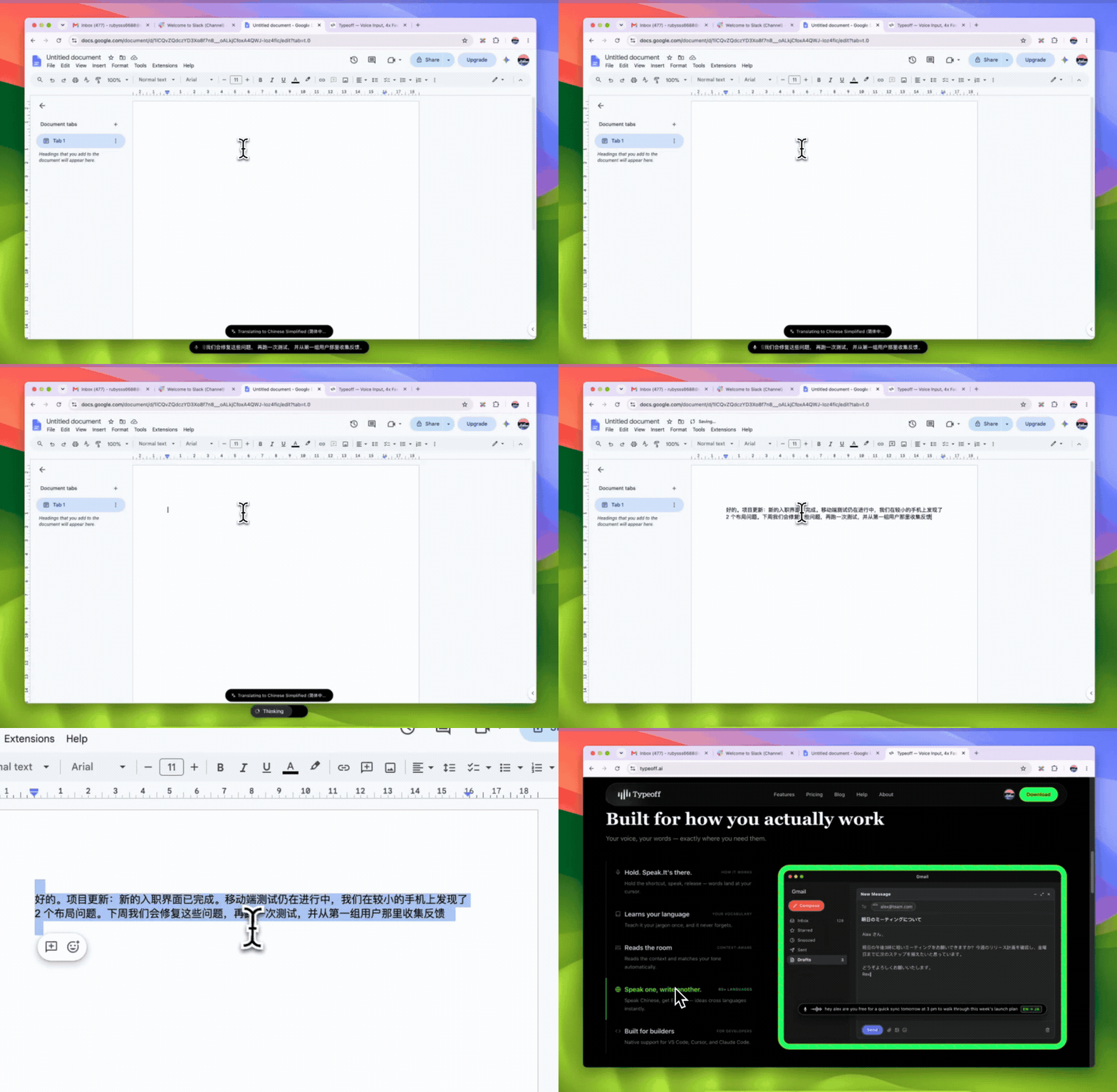
Chinese Project Update in Google Docs
Project documentation demands precision. In this case the user outlines what’s finished, what’s in progress, discovered issues, and the next steps:
The new onboarding page is complete. Mobile testing is still ongoing; we found two layout issues on smaller phones. Next week we’ll fix those, run another test, and collect the first batch of user feedback.
Compared with a vague “write a project update,” this provides concrete facts and chronology from the person who knows the project best.
When This Workflow Makes Sense
Multilingual voice input shines when you already know what you want to say and the only friction is writing it in the recipient’s language. Typical scenarios include:
- Drafting internal progress updates for an international team;
- Responding to routine customer or partner messages;
- Turning spoken meeting notes into a document in another language;
- Preparing a first draft for a local colleague to review;
- Sending short cross‑language communications directly within the app where the conversation happens.
If the hard part is deciding what to say, this method isn’t a fit. When the content requires research, policy interpretation, legal wording, or unfamiliar cultural norms, translation is only one piece of the puzzle. Complete those decisions first, then use voice input to draft.
Use Voice for Ideas, Keyboard for Precision
Voice and keyboard aren’t competing; they complement each other at different stages.
Voice is great for getting the whole thought onto the page quickly. Keyboard excels at verifying names, correcting numbers, adjusting technical terms, or tightening phrasing. A reliable workflow uses both: voice to keep momentum, keyboard to ensure accuracy.
With Typeoff you can speak naturally, pick a different output language, and have the generated text inserted at the cursor in the current app. The text can be structured during generation, but the final review remains your responsibility.
FAQ
Can I speak English and have the output in another language?
Yes. In a cross‑language voice workflow, English can be the spoken language while you select any other language for the written output. Still, review the result—especially names, numbers, terminology, and tone—before sending.
Is multilingual voice input the same as AI writing?
No. In the workflow described here, you provide the full message; the tool only changes its language and presentation. Giving the tool a short prompt and letting it compose the entire email is a different use case.
Do I still need to proofread the translation?
Absolutely. Any detail that could cause problems if altered should be re‑checked. For important external communication, a native speaker or professional translator should perform the final review.
What should I say when I’m dictating for translation?
Speak exactly what you want the recipient to read. State the facts, requests, deadlines, and alternatives clearly. Brief format cues can help organize the content but cannot replace the actual message.
A Shorter Path from Idea to Draft
The goal of multilingual voice input isn’t to make language irrelevant. Language still carries context, tone, and consequences. What it removes are the unnecessary steps between “knowing what to say” and “having a reviewable translated draft.”
Choose the output language, dictate the complete message, verify the critical details, and only then hit send.