Guides
Not Just Voice Input: Getting to Know Typeoff Ask Anything
Typeoff Ask Anything is a voice‑driven AI workflow that lets you work with existing text without leaving the page. Select text and issue a natural‑language request to explain, summarize, translate, rewrite, adjust tone, and more. This article shows how to use it for reading, writing, document handling, and everyday office tasks, and explains how “voice + context” reduces copy‑pasting and tool‑switching, making AI feel natural in real work.
Typeoff Team August 14, 20269 min read

When you already know what you want to say, voice input is straightforward: speak naturally, Typeoff captures the speech, and the text appears at the cursor.
But writing rarely starts from a blank page. Often the text is already in front of you, and you need to understand, question, shorten, translate, or re‑phrase it—without having to leave your current workflow.
That’s exactly where Typeoff Ask Anything shines.
In supported desktop workflows you can highlight existing text and then voice the exact action you want. The highlighted passage can serve as the context for answering a question, or it can be the material to be processed. You no longer need to copy the content into a separate AI chat, re‑explain the background, and paste the result back; you can continue working right on the page you’re looking at.
It follows Typeoff’s voice‑first philosophy, but applies it to a different moment: not “I know what I want to write,” but “I need to work with text that’s already there.”
What Is Typeoff Ask Anything?
Ask Anything is Typeoff’s way of handling existing text via voice. Highlight a passage, invoke Ask Anything, and speak the task you need done. Depending on the command, you can ask Typeoff to:
- Explain a difficult paragraph;
- Summarize the selected content;
- Translate the text;
- Shorten or reorganize a section;
- Adjust the tone;
- Rewrite while preserving specific details.
Ask Anything isn’t a fixed set of buttons. Users aren’t limited to preset actions like “Summarize” or “Shorten”; they can describe the exact result they need in natural language, including which parts must stay unchanged.
Consequently, the feature has two distinct usage patterns. Sometimes the highlighted text is the context needed to answer a question; other times it is the text that should be transformed. The selection may look identical, but the user’s intent differs.

Highlight Text and Ask Directly
When a part of a document is unclear, the most direct Ask Anything workflow is:
- Highlight the relevant paragraph;
- Invoke Ask Anything;
- Speak your question;
- View the answer next to the original reading spot.
Because the selection supplies local context, you don’t have to paste the paragraph into a new conversation or restate which sentence you’re referring to.
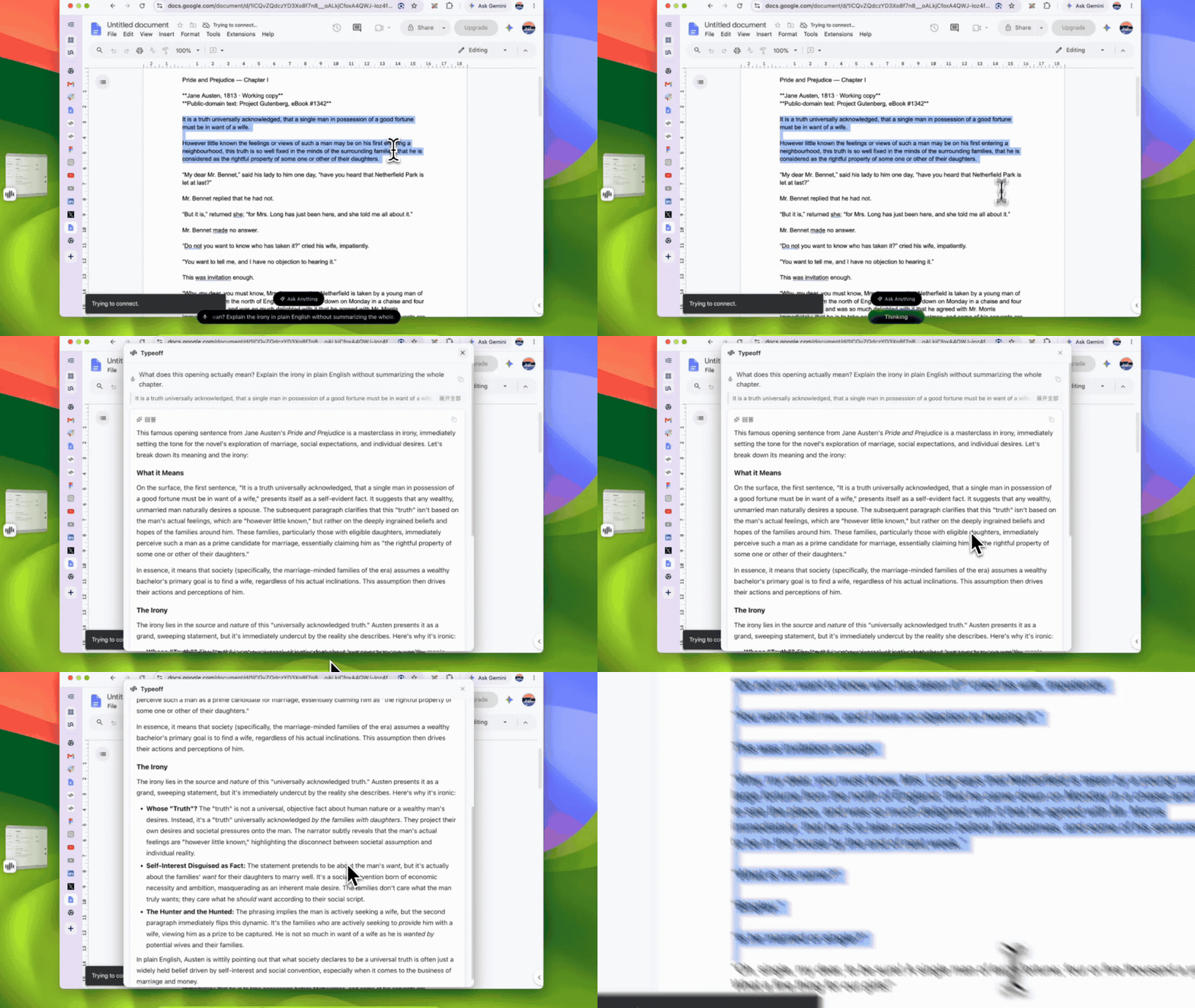
The demo video uses the opening line of Jane Austen’s Pride and Prejudice as an example. It’s a classic sentence that also illustrates the value of Ask Anything. The famous opening reads:
"It is a truth universally acknowledged, that a single man in possession of a good fortune must be in want of a wife."
The vocabulary is simple; the irony is easy to miss. Highlight the opening and ask what it actually conveys, and you’ll get an explanation of that specific line rather than a generic chapter‑wide summary.
The point isn’t to have Typeoff render a literary critique of Austen; it’s to demonstrate how keeping the selection as context keeps the question tightly bound to the text that triggered it.
Not Limited to Preset Actions – Ask Real Questions
Document‑level queries aren’t always reducible to “summarize” or “rewrite.” A passage may be literal but carry nuanced meaning in context. You might want to know what the speaker is implying, which assumption links two paragraphs, or whether the preceding content truly supports the current conclusion.
Ask Anything lets you pose those precise questions.
In the same Pride and Prejudice document, after highlighting a dialogue you could ask what each character wants and how the exchange reveals their personalities. This answer isn’t produced by a dedicated “Character Analysis” button; it comes from the ability to keep the relevant dialogue selected while speaking a specific query.
The same pattern works for everyday work:
- Highlight a paragraph in a report and ask what conclusion it supports;
- Highlight a long customer email and ask which decisions still need a reply;
- Highlight a technical spec and request a plain‑language explanation of a term;
- Highlight meeting minutes and ask which action items have owners but no deadline;
- Highlight a policy clause and ask what it explicitly mandates.
These answers still require human judgment. Ask Anything places the question next to its context, but it does not turn an interpretation into a factual statement.
You Can Also Ask Independent Questions Without a Selection
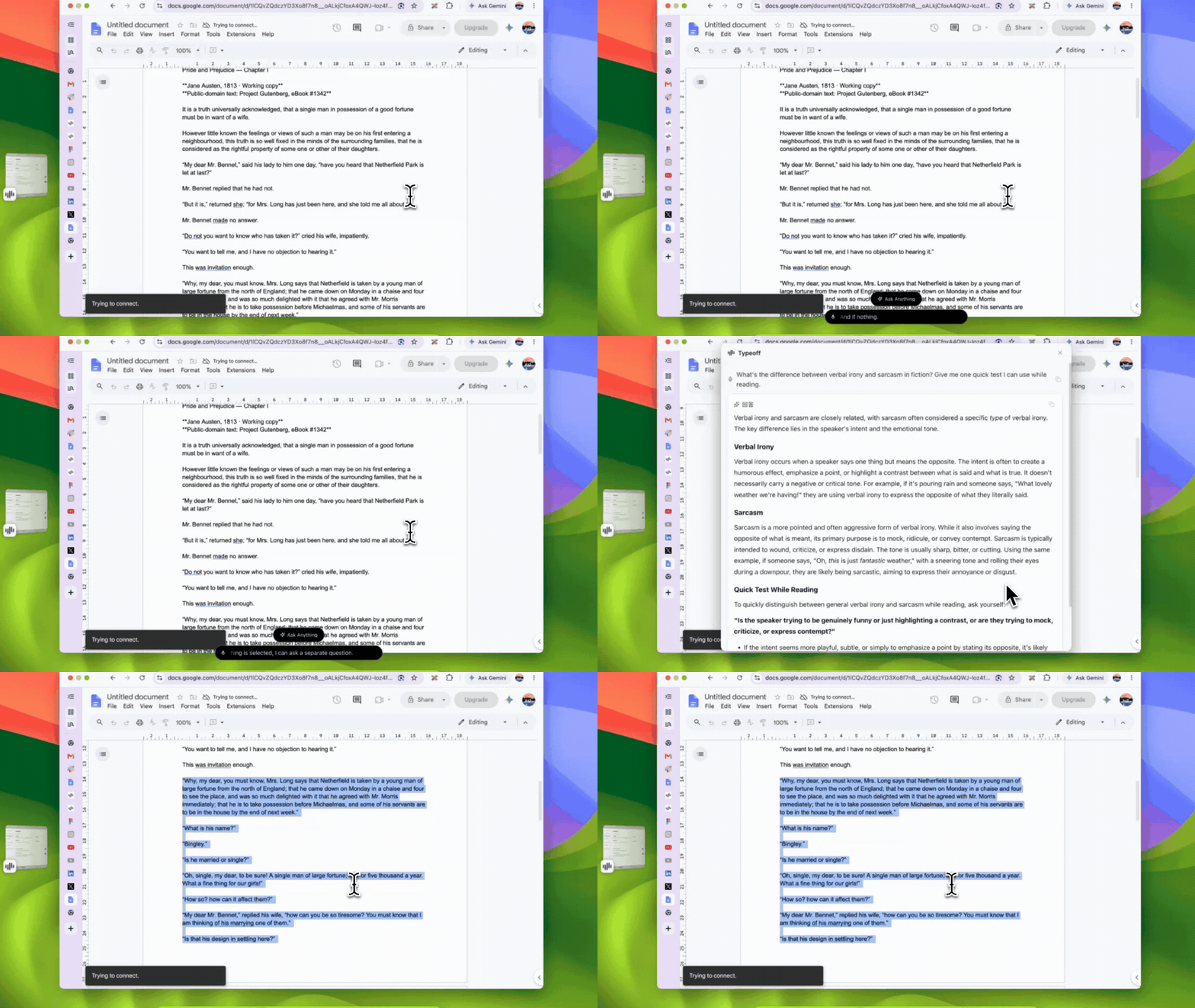
When the answer depends on the surrounding text, a selection is valuable; but not every question needs highlighted text.
Without a selection, Ask Anything works as a stand‑alone voice query. For example, while reading a work you might wonder, “What’s the difference between verbal irony and satire?” The concept is relevant to the current reading but doesn’t require feeding the whole paragraph into the model.
The distinction is clear:
- With selection: Highlighted text provides context for the query;
- Without selection: The question stands on its own.
Both use the same voice‑first interaction. A broader follow‑up question doesn’t force you to open a new tab.
This is handy during writing too. You can ask for a short definition, an alternative headline, a checklist for a paragraph, or a quick explanation of an unfamiliar concept, then instantly return to the text you were editing.
Rewriting Selected Text via Voice
Ask Anything isn’t limited to answering questions; it can also edit the highlighted text.
In this case a full voice instruction is often more useful than clicking a generic “Rewrite” button. “Make it better” provides no concrete criteria, whereas a detailed spoken command can specify the desired changes and the elements that must stay intact.
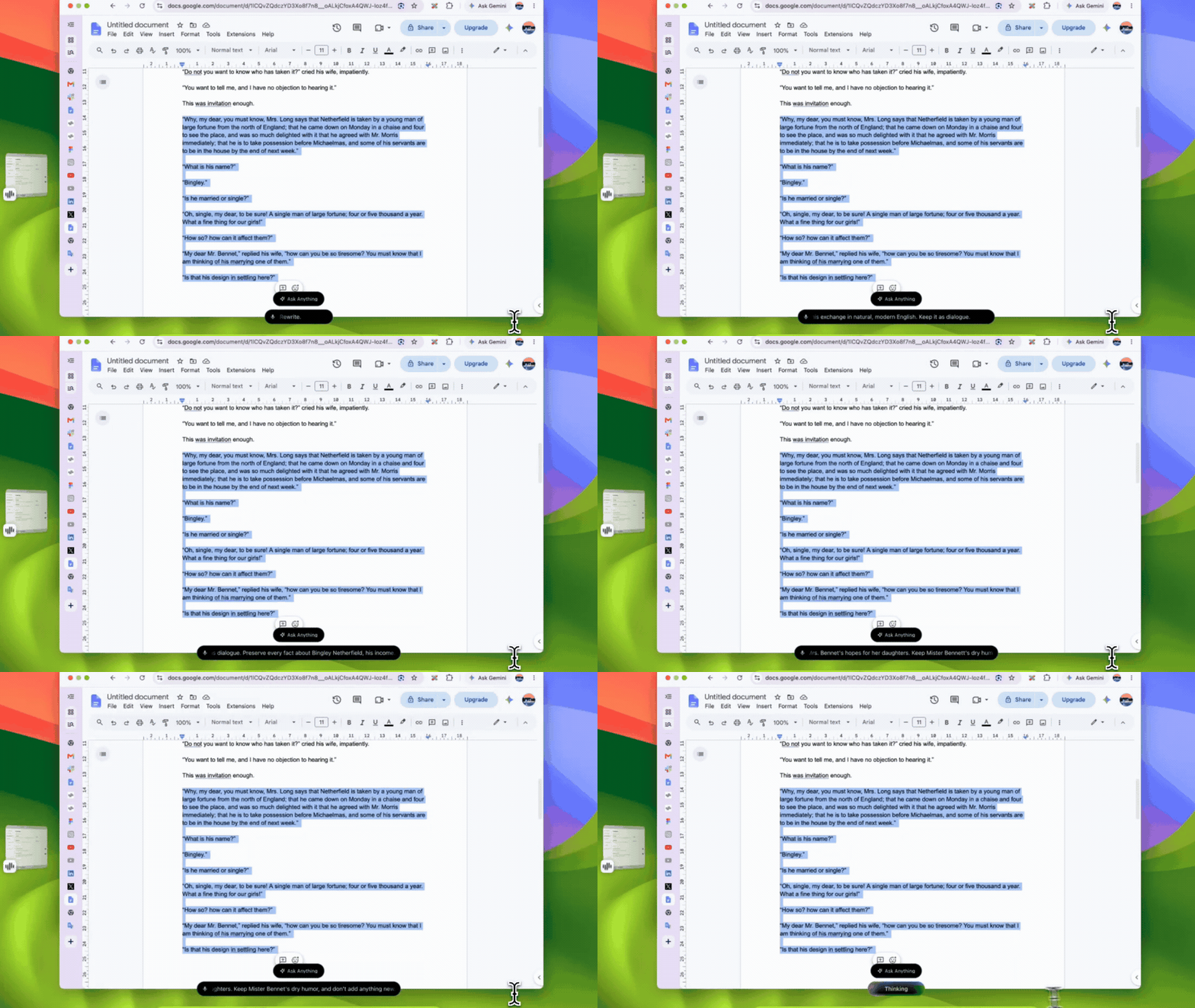
In the video demo, the user asks Typeoff to turn an old‑fashioned English dialogue into natural modern English while preserving:
- The dialogue format;
- Important facts about characters and locations;
- The income figure mentioned in the original;
- Mrs. Bennet’s expectations for her daughters’ marriages;
- Mr. Bennet’s dry humor;
- A strict rule not to add new information.
These constraints aren’t redundant prompt tricks; they prevent a rewrite that becomes smoother but loses facts, weakens tone, or turns tentative language into a definitive claim. Ask Anything lets the user voice the complete editing brief instead of compressing the need into a vague preset.
Depending on the client version, the result may first appear as a reviewable draft, allowing the user to compare it with the original before deciding what to keep. Fluency alone doesn’t guarantee fidelity.
The Real Value: Staying in Your Current Work
AI can already explain and rewrite text. The difference here is where the interaction happens.
Without an in‑place workflow, even a tiny question can involve many steps:
- Copy the paragraph;
- Open the AI tool;
- Paste the text;
- Restate the background;
- Enter the request;
- Read the answer in another window;
- Return to the original document;
- Locate the relevant passage again and apply the result.
Ask Anything cuts down on that back‑and‑forth. The source stays visible, the request is spoken, and the answer appears right next to the trigger point. When you’re working through a long document and one question naturally leads to the next, this continuity is especially valuable.
It’s more than saving a few clicks. Switching context also drains attention. When the original text, the question, and the answer stay together, users can more easily compare and continue from the same spot.

Ask Anything Is More Than a Reading Aid
The classic‑book example illustrates three modes of operation, but the feature isn’t limited to literature or study scenarios.
Highlight a draft, ask Typeoff to shorten it, clarify ambiguous parts, or adjust the tone while preserving dates, names, and commitments.
Documents & Reports
Query the meaning of a selected section, turn a complex expression into a more comparable version, or extract the key points from the current review segment.
Technical Work
Select an error description, a spec, or a technical paragraph and request a plain‑language explanation. Code syntax and exact technical strings should still be verified manually.
Translation
Select existing text and ask for a translation without moving it to a separate translation window. Important terms, names, numbers, and tone still need verification.
Editing Existing Drafts
Use voice to shorten a paragraph, reorganize content for a different audience, or change the expression while keeping specified details.
All these scenarios reinforce the same idea: Typeoff isn’t just about inserting new text at the cursor. Ask Anything helps you process text that’s already there.
Keep the Original Within Your Review Scope
Ask Anything can make document work more direct, but the output is still AI‑generated. It may miss context, over‑explain, alter constraints, or produce a smooth rewrite that deviates from the original intent.
When handling important material, you should:
- Keep the original text visible;
- Verify names, dates, numbers, and technical terms;
- Separate what the source actually says from the AI’s interpretation;
- If meaning is critical, compare the rewrite sentence by sentence;
- For legal, medical, financial, contract, or other high‑impact content, have a qualified professional review the result.
Using the feature safely doesn’t mean handing over judgment to AI. The real benefit is shortening the distance between the question and the evidence, making it easier for users to check the answer.
One Voice‑First Workflow for Two Types of Tasks
Typeoff’s core experience is simple: speak naturally, and clear text appears at the cursor. Ask Anything extends that same workflow one step further.
When you know what you want to write, you use voice input to place new content on the page.
When you need to understand, query, translate, shorten, or rewrite existing content, you use Ask Anything.
The user stays on the same document; only the role of voice changes: sometimes it’s input, sometimes a command, sometimes a question.
FAQ
What is Typeoff Ask Anything?
Ask Anything is a desktop workflow supported by Typeoff that lets users issue voice commands to query or process existing text. Highlighted text can serve as context for an answer or as the material to be transformed; without a selection, independent questions are also possible.
How can Typeoff handle highlighted text?
You can ask it to explain, summarize, translate, shorten, adjust tone, reorganize, or rewrite. The actual output depends on the specific instruction and should always be checked against the source.
Does highlighting always modify the original text?
Not necessarily. The highlighted passage may only provide context for a question. It is altered only when the command explicitly requests a transformation, and the result should be reviewed before applying.
Can Ask Anything fully replace a separate AI chat?
For many selection‑based queries and editing tasks it removes the need to copy text into another conversation. However, complex research or high‑risk work may still require a dedicated, specialized workflow.
Is Ask Anything available on all platforms that support Typeoff?
The feature is part of the desktop experience; behavior may vary by platform and client version. Check the current Typeoff documentation and your app version for details.